Hey there, tech enthusiasts and creative minds, Ever stared at a flat photo and wished you could bring it to life in three dimensions? Imagine transforming a simple selfie or a family snapshot into a fully animated 3D character that dances, flies, or even boxes like a pro—all right from your smartphone. Sounds like magic? It’s not—it’s the power of AI, and it’s easier than you think.
In this step-by-step guide, I’ll walk you through using Meshy AI, a free (mostly) tool that lets you convert images to 3D models and add animations without needing fancy software or a powerful computer. Whether you’re a content creator, hobbyist, or just curious, you’ll have your first 3D animation ready in minutes. Let’s dive in.
Why Bother with 3D Models on Your Phone?
Before we get hands-on, a quick note: Tools like Meshy AI democratize 3D creation. No more wrestling with Blender on a clunky laptop—everything happens in your browser. You’ll end up with exportable models perfect for social media, AR filters, or even game prototypes. Pro tip: This works best on Chrome for Android or Safari on iOS.
Step 1: Set Up and Access Meshy AI
- Open Your Browser: Fire up Chrome (or your preferred browser) on your phone. Head to the search bar and type “Meshy AI”. The official site should pop up first—tap it to enter.
- Explore the Interface: Once inside, you’ll see a sleek dashboard with options like “Image to 3D,” “Text to Image,” “3D to Video,” and more. It’s a playground for AI creativity.
- Choose Your Tool: For our mission, select “Image to 3D”. This opens a dedicated page where the magic begins. You’ll notice three main tabs—stick with the “Image” one for now. The rest are for advanced tweaks, but you won’t need them yet.
Step 2: Upload and Convert Your Image to 3D
Here’s where the fun starts. The key to success? Picking the right photo.
- Select a Suitable Image: Click the upload button (it looks like a plus icon or camera). Your gallery opens—choose a full-body shot where the subject is clearly visible from head to toe. Avoid cropped images, hidden hands (like in pockets), or side profiles that obscure the body structure. For example:
- Good: A front-facing pose with arms extended, legs apart—clear limbs and details.
- Bad: Blurry shots, heavy clothing overlaps, or partial views. These can lead to “glitchy” models with fused limbs.
- Upload and Generate: Once selected, the image loads automatically. Hit the “Generate” button at the bottom. Sit back—this AI wizardry takes 1-2 minutes. You’ll see a progress bar (e.g., “Task Started” → “Generating… 50%”). Pro Tip: Meshy provides sample models if you want to test without uploading. I’ve got a few pre-made ones in my library, like a dancing figure or a floating avatar—feel free to experiment!
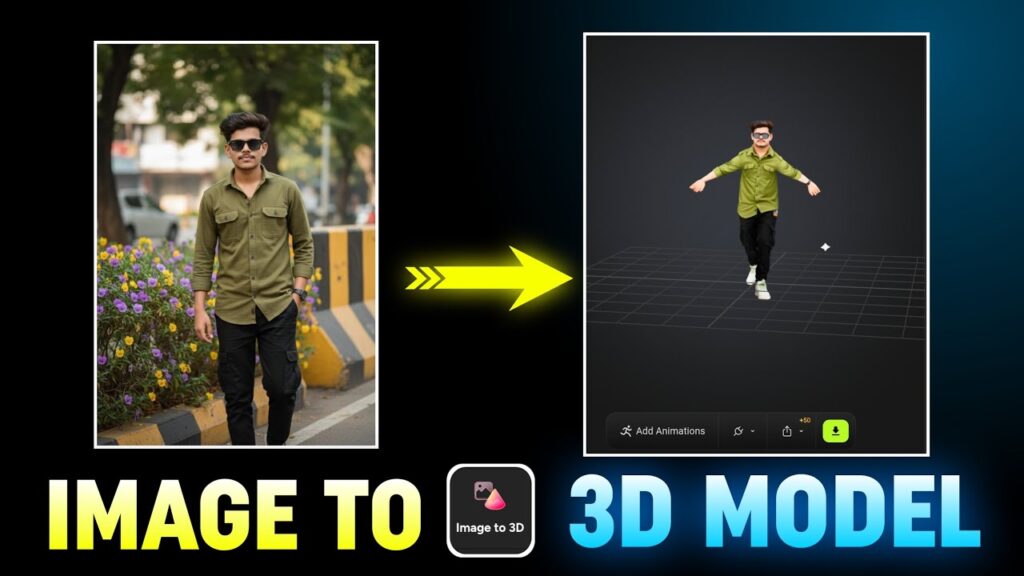
- Preview Your 3D Model: Boom! Your model appears, rotating in a viewer. Zoom, pan, and rotate to inspect. At this stage, it’s a basic wireframe—limbs, torso, and pose intact, but grayscale.
Step 3: Add Textures for That Pop of Color
A plain model is cool, but colorful? Chef’s kiss.
- Apply Textures: Below the viewer, tap the “Texture” option. Select a style (e.g., realistic skin tones or stylized effects) and confirm. Processing takes another 30-60 seconds.
- Admire the Results: Your model now bursts with colors straight from the original photo—hair, clothes, skin textures all mapped perfectly. It’s like the AI cloned your image into 3D space!
If something looks off (e.g., distorted hands), blame the source image. Retry with a clearer photo for flawless results.
Step 4: Rig and Animate Your Model
- Rig the Model: Scroll down to the “Animate” section. You’ll see a gallery of pre-built animations: dancing, flying, alerting, boxing—you name it. But first, tap “Rig” (it preps the model for movement by adding a digital skeleton).
- Confirm the prompt (e.g., “Humanoid? Yes.”) and hit “Next”. Processing starts—give it a minute. This step ensures smooth, natural poses.
- Pick and Apply an Animation: Once rigged, select your vibe (e.g., the boxing one for some action). Tap “Add” or “Apply”, confirm again, and watch the preview. Your character punches away, rotating freely for any angle. Heads Up: Animations only stick after rigging. If it glitches (like stuck limbs), it’s often the photo’s fault—opt for open poses next time.
- Test and Tweak: Play around! Switch animations mid-session. I once rigged a clear full-body shot and added a flying sequence—it soared flawlessly.
Powerful Gcam with Config File | Gcam For All Mobile | Best Camera App Photography
Step 5: Export and Save Your Creation
- Download Options: Hit “Download” below the viewer. Choose formats like OBJ (for 3D editing) or GLB (for web/AR). But here’s the catch: The free tier limits exports. It might prompt for a Pro upgrade.
- Free Workaround: Screen Record: No budget? No problem! Position your model at the perfect angle, start your phone’s built-in screen recorder (swipe down on most devices), and capture the animation loop. Stop, save, and boom—your video is ready for editing in CapCut or InShot. Example: I recorded a boxing animation, trimmed it, and added music. Instant viral clip!
Bonus: For pros, Meshy integrates with Blender—export directly and edit on PC if you want deeper customizations. (Though, honestly, who has time for that on mobile?)
Common Pitfalls and Pro Tips
- Image Quality is King: Full visibility = perfect models. Experiment with 5-10 photos to nail it.
- Patience Pays: Generations take time—grab coffee during waits.
- Free vs. Pro: Basics are gratis, but unlimited exports? Worth the upgrade for heavy users.
- Privacy Note: Uploaded images process on servers—use non-sensitive photos.
- Next Level Ideas: Animate pets, products, or memes. Share on TikTok or Instagram Reels for fun.
Wrap-Up: Unleash Your Inner 3D Artist
There you have it—image to interactive 3D animation in under 10 minutes, all on your phone. Meshy AI isn’t just a tool; it’s a creativity booster that makes high-end effects accessible to everyone. I was skeptical at first, but after rigging my first model and watching it dance? Hooked.
Give it a spin today—what will you animate? Drop a comment below with your results, or tag us on socials. If you loved this, subscribe for more mobile hacks, AI tutorials, and gadget guides. Happy creating.