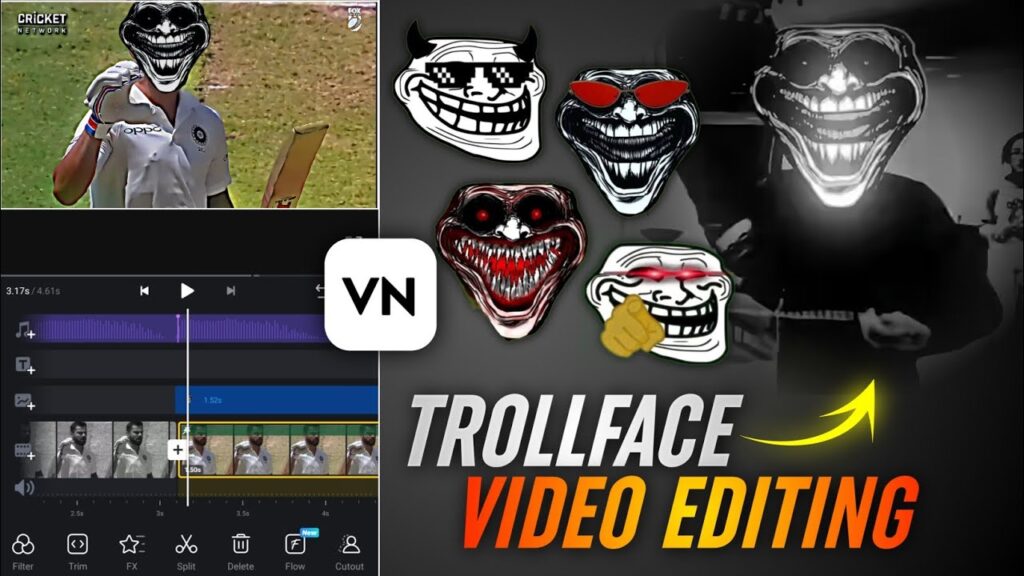
In today’s blog, I’m going to show you how you can create trending Troll Face video edits using the VN App. this style is super viral right now on Instagram Reels, YouTube Shorts, and TikTok. Even if you’re a beginner, don’t worry — this tutorial will guide you from start to finish in the simplest way possible.
So let’s get started.
⭐ 1. Open the VN App
If you already have the VN App installed, just open it.
If not, go to Google Play Store or App Store and download it.
Once you open the app, you’ll see a clean interface.
Now tap on “+ New Project” and import your main video.
Your video will appear on the timeline, completely raw and unedited.
⭐ 2. Add Music First (Very Important for Troll Face Edits)
Troll Face edits are all about beat-sync, so you must add your music before any editing.
How to add music:
- Tap on Music
- Go to My Music → Music Library
- Select any track from your device
If you don’t have troll face music:
✔ Check the video description (where I’ll provide tracks)
✔ Extract audio from YouTube Shorts
✔ Or use trending Reel sounds from Instagram
Once the music is selected, tap Done.
⭐ 3. Add Beat Marks
Now tap on your music layer → Beats.
Play the track and wherever you hear a strong beat drop, tap to add a Beat Marker.
These beat marks will help you sync the troll face perfectly later.
⭐ 4. Create a Freeze Frame Where You Want the Troll Face
Play your video and decide the exact moment where you want to add the troll face.
At that frame:
- Scroll the tools
- Select Freeze / Frozen
This creates a still image of that frame.
Delete the remaining unwanted part of the video after the freeze for clarity.
⭐ 5. Match Freeze Frame With Beat Marker
Your freeze frame and beat marker should align perfectly.
Trim the video slightly and adjust both elements until they match.
This makes the edit look professional and sharp.
⭐ 6. Add the Troll Face PNG (Download Link)
Time to add the troll face!
- Tap Layer / Overlay
- Select Video & Photo → Photos
- Choose your troll face PNG
If you want more troll faces:
👉 I’ll provide a PNG pack link
👉 I’ll also share a full guide video on how to download unlimited troll faces
Click here to Download
Now resize and place the troll face exactly on your character’s face (like Virat sir in your example).
⭐ 7. Add Animation to the Troll Face
To make your edit pop:
- Select the troll face layer
- Go to FX (Effects)
- Choose glitch, pop, shake, or any dynamic animation
Keep the duration short for a strong impact.
⭐ 8. Add Glitch Effects to the Freeze Frame
Select the freeze image below:
- Go to FX
- Choose a glitch or noise effect
This enhances the meme-style look of your edit.
⭐ 9. Make Freeze Frame Dark (Professional Touch)
For better contrast:
- Select the freeze image
- Go to Filter → Adjust
- Reduce brightness
- Reduce exposure
This makes the troll face stand out more.
⭐ 10. Play and Review the Entire Edit
Now watch your full timeline.
If the troll face is slightly off-sync, move it a few frames left or right.
Small adjustments make a big difference!
⭐ 11. Export the Final Video (High Quality)
Tap Export →
- Choose 4K if your device supports it
- Otherwise, select 1080p
- Increase bitrate for better clarity
Tap Export again — and your high-quality troll face meme edit is ready!
⭐ Final Words
I hope this full guide helped you understand how to edit a trending Troll Face video in the VN App.
Follow these steps and your edit will look clean, sharp, and viral-worthy.
Next Blog Coming Soon:
💥 How to Create Viral Meme Edits Using CapCut Templates
Until then —
Stay happy and keep spreading positivity ❤️
⭐ FAQ – Troll Face Video Editing in VN App
1. How do I make a Troll Face video edit on the VN App?
To make a Troll Face video edit, open VN App → create a new project → add your main video → import music → add beat markers → freeze the frame → insert the Troll Face PNG → add animation & effects → then export in 1080p or 4K.
2. Where can I get Troll Face PNG images for editing?
You can find Troll Face PNGs on Google, Pinterest, and meme websites. Many creators also provide PNG download links in their video descriptions.
3. How do I sync Troll Face with music beats?
Use VN App’s Beat Marker feature. Play the music and tap to mark the beats. Then align your freeze frame and Troll Face PNG exactly on those marked beats.
4. Is VN App free for making Troll Face edits?
Yes! The VN App is completely free and works on both Android and iOS. All basic tools like freeze frame, beat sync, filters, and effects are included for free.
5. How do I add freeze frame (freeze effect) in VN App?
Go to the exact moment where you want the Troll Face. Tap Freeze (or “Frozen”) → VN will create a still image → delete extra unwanted parts → then place your Troll Face PNG on top.
6. What is the best export setting for Troll Face edits?
For highest quality:
- Resolution: 1080p or 4K
- FPS: 30/60
- Bitrate: High
This gives you a clean, sharp meme video perfect for Instagram, YouTube Shorts, and Reels.
7. Can beginners do Troll Face video editing on VN?
Absolutely yes. VN is easy, beginner-friendly, and perfect for meme edits. Even without prior editing experience, you can create a viral Troll Face edit by following basic steps.
8. Can I use any music for Troll Face edits?
Yes, you can use music from your device or extract audio from a video. Make sure you use copyright-free music if you plan to upload on YouTube.
9. Why is my Troll Face PNG not looking clean?
Always use high-quality transparent PNG files. Low-quality images become pixelated when zoomed into faces. Choose 512px or higher resolution PNGs.
10. How long does it take to create a Troll Face edit in VN App?
On average, a complete troll face edit takes 5–10 minutes depending on how many beats, animations, and effects you add.