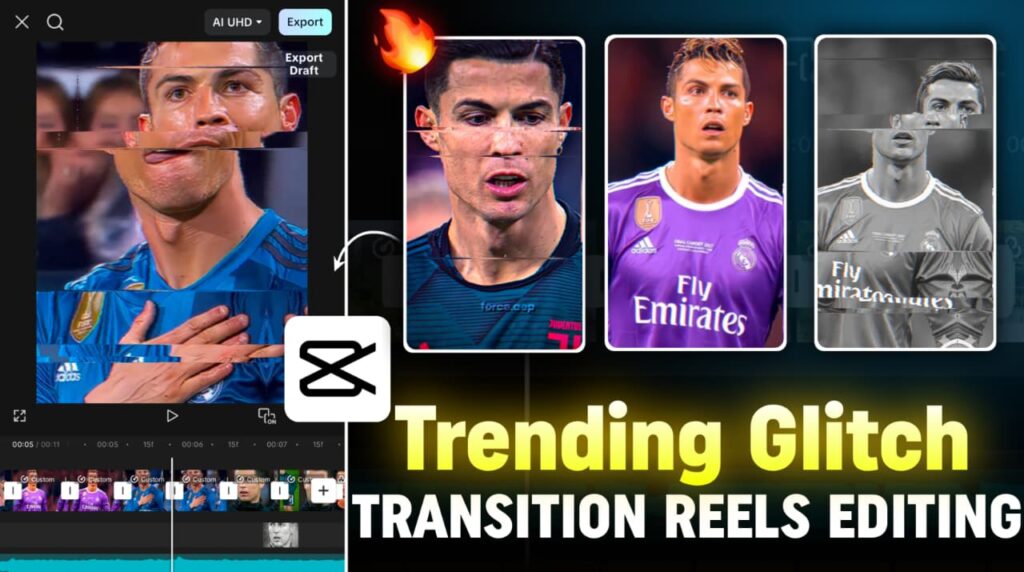
If you want to create viral Glitched Transition Reels for Instagram or TikTok, CapCut is the best and easiest app for editing in 2025.
In this tutorial, you will learn step-by-step how to select clips, set aspect ratio, add beats, create speed ramps, apply glitch transitions, add effects, and make high-quality cinematic edits.
This guide is perfect for beginners and professional editors.
Step 1: Open CapCut App
Open CapCut and:
- Tap New Project
- Select your desired video clips
You can import clips of creators, sports players, celebrities — like Ronaldo, Virat, etc.
Tip: Search “Ronaldo 4K clips” or “Virat 4K highlights” on YouTube/Instagram for high-quality footage.
Step 2: Set the Aspect Ratio
Scroll below and choose the right aspect ratio:
- 1:1
- 3:4
- 9:16 (best for Reels/TikTok)
Select the format based on your content requirement.
Step 3: Make Clips Full Screen
Tap each clip →
- Select Fill → Full Screen
- Arrange all clips in sequence to keep the edit smooth.
Step 4: Add Perfect Audio (Music)
Music is the heart of any reel.
Go to:
- Audio → Sounds
Here you can:
- Extract audio from any video (Extra)
- Upload your own sound (Files)
For glitch-style reels, use a beat-heavy track.
Step 5: Enable Beat Marking
For smooth transitions:
- Tap Beats → Auto Generate
Delete unnecessary beat marks and keep only the real drops or important beats.
Step 6: Speed Ramping (Curve Editing)
This is where the real editing begins.
For Forward Clip:
- Tap the clip
- Go to Speed → Curve → Custom
- Delete all default points
- Move the first point upward
- Move the last point downward
This creates:
- Fast beginning
- Slow ending
For Reverse Clip:
- Duplicate the clip
- Reverse the second clip
- Adjust the graph in opposite direction
- Enable Better Quality
This creates the signature slow-to-fast glitch movement.
Step 7: Add Shake + Oblique Blur Effects
1. Shake Effect
- Effects → Party → Shake
- Apply only at the beginning of the clip
- Object → All Videos
- Add keyframes:
- Start: default
- End: intensity 0
2. Oblique Blur
- Effects → Search “Oblique Blur”
- Add on the same duration as the Shake
- End keyframe → blur 0
These effects add a natural, cinematic movement.
Step 8: Add Glitch Transition
- Effects → Glitch → Discoloration
- Apply between two clips
- Duration: 0.3–0.5 seconds
This creates the popular viral glitch flicker.
Step 9: Create Black Flash Effect (Gemini AI Method)
CapCut does not create a perfect black flash, so here is the pro technique:
Step 1: Take Screenshot of Frame
- Fill screen
- Capture screenshot
- Crop to main subject
Step 2: Open Gemini App
Upload screenshot →
Use prompt:
“Convert into grayscale sketch art image.”
Gemini will generate a dark/grey sketch output.
Step 3: Add Overlay in CapCut
- Overlay → Add → Import sketch image
- Stretch to full screen
- Place exactly at the glitch moment
- Keep a very short duration
Your black glitch flash is ready 🔥
Click here to download music
Step 10: Add Keyframe Motion (Cinematic)
On each clip:
- Start keyframe → Normal
- End keyframe → Slight zoom (120–130%)
Then use graph adjustments for smooth motion. this gives your video a professional, buttery-smooth cinematic look.
Conclusion
Your Glitched Transition Reel is now complete 🎬🔥 If you followed every step, your video will look professional and highly engaging.
This combination of speed ramping + glitch transitions + AI black flash effect is the most viral reel style in 2025.
✅ FAQ – Glitched Transition Reels in CapCut (2025)
1. What is a glitched transition reel?
A glitched transition reel is a fast-paced video edit where clips switch using glow, shake, distortion, color flicker, and glitch effects synced with music beats. Instagram par ye style sabse viral format me count hota hai.
2. Can I create glitch transitions using only CapCut?
Yes, CapCut ke built-in effects se aap glitch transitions bana sakte hain. Lekin Gemini AI ka black-flash effect add karne se result 10× cinematic dikhta hai.
3. Which aspect ratio is best for glitch reels?
For Instagram Reels / TikTok: 9:16
For YouTube Shorts: 9:16
For square videos: 1:1
Portrait ratio best performance deta hai.
4. How do I make speed ramping smooth in CapCut?
CapCut me smooth speed ramp ke liye:
- Speed → Curve → Custom select karein
- Default points delete karein
- First point = fast
- Last point = slow Graph editing se buttery cinematic motion milta hai.
5. How to add the black flash effect using Gemini AI?
- Clip ka screenshot lein
- Gemini me upload karein
- Prompt type karein: “Convert to grayscale sketch art”
- Output ko CapCut me overlay karein
- Duration 0.2–0.3 sec रखें Yahi trick professional editors use karte hain.
6. Which music is best for glitched transition reels?
Beat-drop, bass-boosted, glitch-style soundtracks sabse best hote hain. Aap CapCut “Sounds” section me ya YouTube se extract kar sakte hain.
7. Do glitch reels get more views on Instagram?
Yes. Instagram AI short, fast-paced, beat-sync reels ko zyada push karta hai. Glitch transitions high engagement aur retention increase karte hain.
8. Do I need a powerful phone for this editing?
Nahi. CapCut lightweight app hai. Basic mid-range phone me bhi aap easily glitch reels bana sakte hain.
9. Can beginners use this tutorial?
Absolutely. Iss guide me saare steps beginner-friendly hain — beat marking, speed ramp, keyframes, effects sab easy language me explain kiya gaya hai.
10. Is this editing method legal for Instagram Reels?
Haan, CapCut + Gemini AI techniques 100% safe aur legal hain. Bas copyrighted music use na karein.