Skull Emoji Editing in CapCut – Step-by-Step Viral Reel Tutorial
Skull Emoji Editing has become one of the most viral CapCut reel trends on Instagram Reels and YouTube Shorts. This edit is famous for its dramatic beat drop, freeze-frame moment, skull emoji impact, and powerful visual effects that instantly grab attention.
In this article, you’ll learn how to create Skull Emoji Editing in CapCut step by step, even if you are a beginner. Follow this complete guide to make high-impact, cinematic skull emoji edits using only the CapCut app.
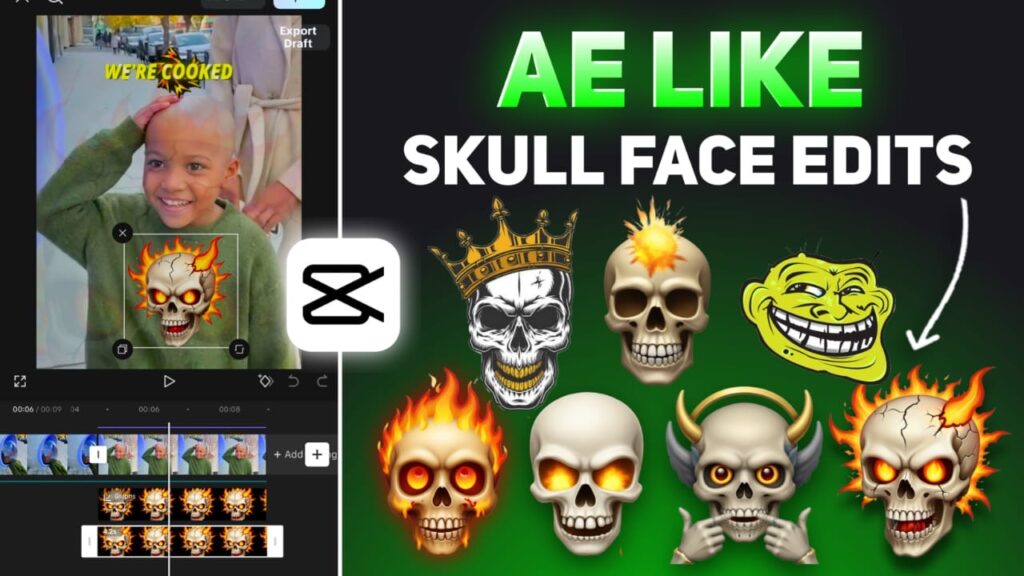
What Is Skull Emoji Editing in CapCut?
Skull Emoji Editing is a freeze-frame based reel edit where a skull PNG emoji appears at the beat drop, combined with shake, astral, rebound swing effects, and cinematic color adjustments.
This style is commonly used in:
- Attitude reels
- Dark aesthetic edits
- Motivation videos
- Sigma / alpha male edits
- Beat drop reels
The combination of freeze frame + skull emoji + shake effects makes the video visually powerful and highly shareable.
Requirements for Skull Emoji Editing
Before starting, make sure you have:
- CapCut app (Android or iOS)
- A video clip with a clear beat drop
- Skull Emoji PNG (transparent background)
- Trending background music
Step-by-Step Skull Emoji Editing Tutorial in CapCut
Step 1: Create a Freeze Frame at the Beat Drop
- Import your video into CapCut.
- Play the clip and stop exactly at the beat drop.
- Place the timeline indicator at that point.
- Tap on Freeze to create a freeze frame.
- Extend the freeze frame duration as needed for the effect.
👉 This freeze frame is the base of the entire skull emoji edit.
Step 2: Add Skull Emoji PNG
- Download a Skull Emoji PNG (transparent).
- Tap Overlay → Add Overlay.
- Import the skull PNG.
- Position it slightly below the center of the screen.
- Adjust the size so it looks natural and impactful.
💡 Keep the skull visible but not too large.
Step 3: Add “Astral” Effect
- Go to Effects.
- Search for “Astral”.
- Add the Astral effect above the freeze frame.
- Reduce its duration to match the beat impact.
- Copy and paste the effect to make it stronger.
This effect adds an energetic glow around the skull.
Step 4: Add “Shake” Effect
- In Effects, search “Shake”.
- Select Shake 3.
- Apply it over the freeze frame.
- Duplicate the shake effect for extra intensity.
Shake effects create vibration that enhances the beat drop.
Step 5: Add “Rebound Swing” Effect
- Search “Rebound Swing” in Effects.
- Apply it to the full length of the freeze frame.
- Reduce size slightly.
- Set Speed to 5.
This gives a cinematic motion bounce to the frame.
Step 6: Apply Cinematic Adjustments
- Select the freeze frame.
- Go to Adjustments → Basic.
- Use the following settings:
- Saturation: -25
- Exposure: Slightly lower
- Contrast: Increase for impact
- Vignette: +30
These adjustments give a dark, dramatic, cinematic look.
Final Touches
- Sync the edit perfectly with the music beat
- Keep the skull emoji sharp and centered
- Avoid overusing effects
- Export in 9:16 ratio (1080×1920) for Reels and Shorts
Your Skull Emoji Editing is now complete!
Why Skull Emoji Edits Go Viral
- Strong beat drop impact
- Eye-catching freeze frame
- Dark cinematic vibe
- High engagement visuals
- Perfect for Instagram Reels algorithm
SEO FAQ Section
What is Skull Emoji Editing in CapCut?
Skull Emoji Editing is a viral CapCut reel style using freeze frames, skull PNG overlays, shake effects, and cinematic adjustments synced with beat drops.
Is Skull Emoji Editing free in CapCut?
Yes, this edit can be created using CapCut’s free version.
Where can I download Skull Emoji PNG?
You can download skull emoji PNGs from free PNG websites or request links from the creator.
Does Skull Emoji Editing help reels go viral?
Yes, when combined with trending music and proper timing, this edit significantly increases reach and engagement.