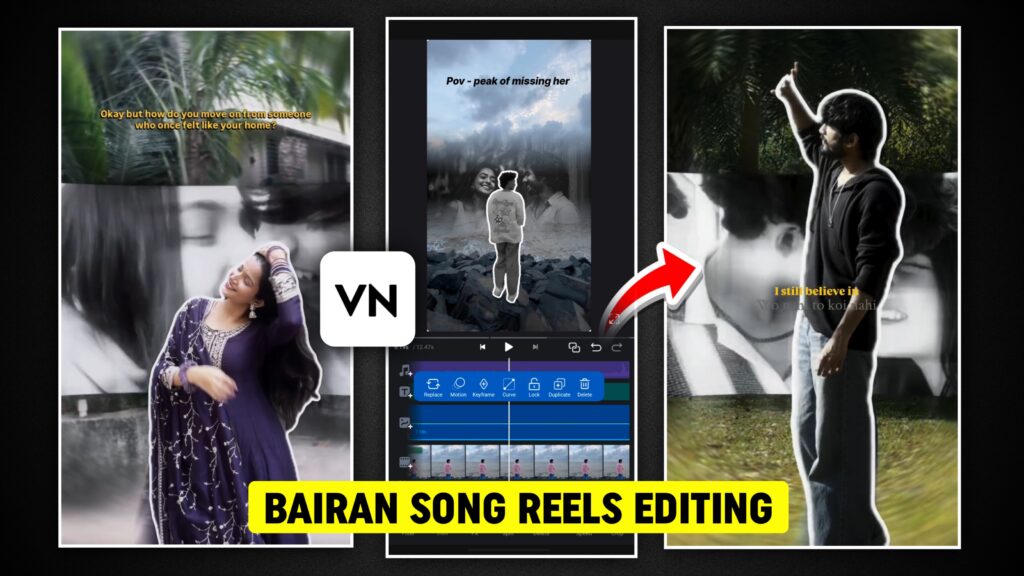
How to Create Trending Baron Song Reels Video Editing in VN App
Short-form videos and Instagram reels are becoming more popular every day. Many creators want to make trending reels edits with cinematic transitions and music sync, but they think editing requires professional software.
The truth is that you can create amazing reels using only your smartphone with the VN Video Editor app. In this tutorial, we will explain two different methods to create trending Baron song reels editing:
- Manual editing method
- QR code template method
Both methods are beginner-friendly and easy to follow.
Step 1: Open the VN Video Editor
First, open the VN app on your phone.
- Tap on the Plus (+) icon
- Select New Project
- Choose your video clip
- Tap Add
After adding the video, you will see the editing timeline.
Step 2: Mute the Original Video Audio
If your video contains background noise or unnecessary sound, remove it first.
Steps:
- Tap on the video clip
- Select Mute
This will remove the original audio so you can add trending music.
Step 3: Add Music to the Video
Music is the most important part because the entire edit will sync with the beat.
To add music:
- Tap on Music
- Select My Music
- Choose music from your device
You can also extract audio from a video by using the Extract from Video option.
Once the music is added, play it once and find the beat timing.
Usually the first beat appears after 5–6 seconds.
Step 4: Freeze Frame for the Intro
To create the intro effect:
- Select your video clip
- Scroll to the end
- Tap Freeze
This will create a frozen frame image.
Now delete the unnecessary part of the original video and extend the frozen frame according to the video duration.
Step 5: Duplicate the Frozen Frame
Next, create a layer animation.
- Tap Duplicate
- Select PIP (Picture in Picture)
This will bring the duplicate layer on top.
Move the layer slightly forward on the timeline.
Step 6: Remove the Background
To create a cutout effect:
- Tap Cutout
- Wait for the background removal
- Enable Stroke
- Select white color
Now the cutout subject will appear clearly in the frame.
Step 7: Add Keyframe Animation
To create a smooth upward motion animation:
- Add a keyframe at the beginning
- Add another keyframe slightly ahead
- Move the starting frame downward
- Use Curve animation for smoother motion
This will create a bottom-to-top movement effect, which looks very attractive in reels.
Step 8: Add Background Video
Next, add a background video containing multiple photos.
Steps:
- Tap Add Media
- Select the video containing your photos
- Fill it to full screen
Now the photo video will play behind the subject.
Step 9: Apply Mask Animation
To create a cinematic transition:
- Tap Mask
- Add keyframes at start and end
- Use Mirror mask
- Close the mask at the start
- Open it gradually at the end
This creates a reveal animation.
Step 10: Convert Video to Black & White
Many trending reels use a black and white aesthetic.
To apply this effect:
- Select the clip
- Go to Filter
- Tap Adjust
- Reduce Saturation to 0
Now the video becomes black and white.
Step 11: Add Effects
Effects make your video more cinematic.
Recommended effects:
• Noise effect
• Film grain
• Subtle glitch
Apply effects across the entire timeline for better results.
Step 12: Add Text
Every reel needs a stylish caption.
Steps:
- Tap Text
- Select Add Heading
- Type your text
- Choose a modern font
- Adjust color (black or white)
Place the text at the top of the video.
Step 13: Export the Video
Once editing is complete:
- Tap Export
- Choose 1080p resolution
- Save the video
Your reel is now ready for Instagram or YouTube Shorts.
Download link
Alternative Method: Editing Using QR Code Template
VN also allows editing through QR code templates.
Steps:
- Tap Template
- Scan the QR code
- Tap Use Template
- Add your video and photos
- Export the project
However, manual editing usually gives better results and more control.
Bonus Tip: Create Moving Photo Videos
VN has a feature to automatically create moving photo videos.
Steps:
- Go to Profile
- Open Settings
- Tap Preferences
- Change value from 3 to 0.2
Now:
- Tap New Project
- Select photos
- Tap Next
VN will automatically create a moving slideshow video.
Final Thoughts
VN Video Editor is one of the best mobile editing apps for creating viral reels and short videos.
By using simple tools like:
- Freeze frame
- Mask animation
- Keyframes
- Black & white filter
- Cinematic effects
you can create professional reels directly from your phone.
Practice these techniques and experiment with music beats to create engaging and trending edits.