If you’re active on social media, you’ve definitely seen those trendy “Glowing Girl” style AI videos that look super cinematic. What most people don’t know is — you don’t need heavy software or complicated editing to create them.
In today’s vlog, I’m sharing my personal workflow, exactly how I created these videos using nothing but a browser and an AI tool. Everything works on mobile too, which means anyone can make these viral-ready videos in just a few minutes.
Step 1: Creating the Base Image (The Most Important Part)
I started with my Chrome browser and opened an AI platform.
In the dashboard, I clicked on “Create with” → New Project → Text to Image.”
- Uploaded my portrait photo
- Cropped it cleanly around the face
- Pasted a clear stylistic prompt
- Selected 4 images to be generated at once
- Set the aspect ratio to 9:16 (vertical) for Instagram Reels, YouTube Shorts & TikTok
Within a few seconds, I had four beautiful images in front of me.
I chose the most realistic one — the one that matched the glowing aesthetic perfectly — and downloaded it.
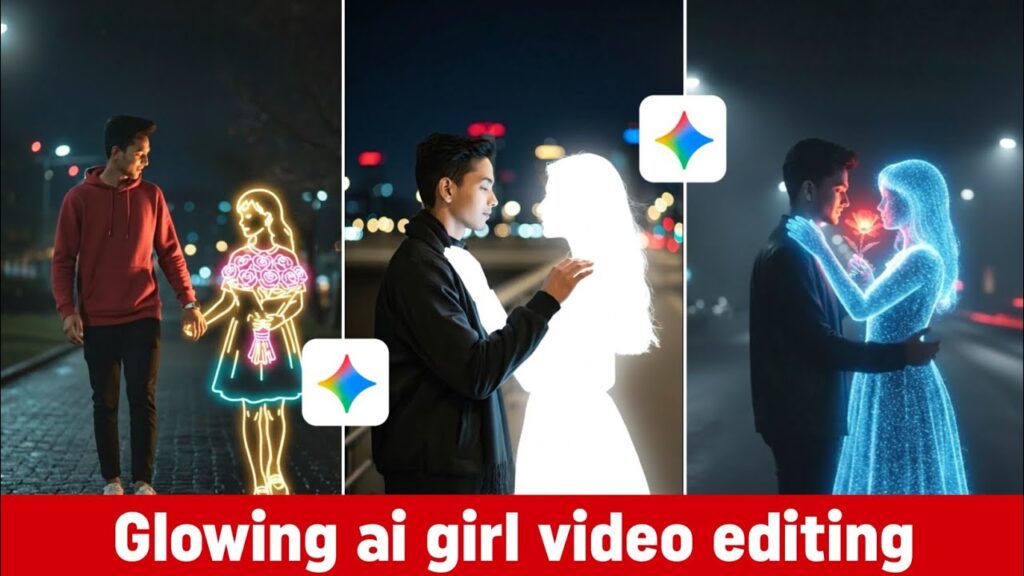
Step 2: Turning the Image Into a Video (Frame-to-Video)
Next, I went to the Frame to Video model inside the same AI tool.
I uploaded the image I selected earlier.
Sometimes the image may not upload due to format issues —
so I simply made a tiny edit in my phone gallery (like increasing brightness by 1–2%) and saved it again.
After that, it uploaded smoothly.
Then I wrote a simple instruction:
“Make a realistic glowing-style video…”
(You can add more actions or specific style keywords depending on the scene.)
I clicked Generate, waited for a few seconds,and boom — the video was ready.
Honestly, the output looked shockingly smooth and realistic.
If you want the highest quality, always download in Original Quality.
⭐ Download the Sample Video (My Final Output)
👉 [Click Here to Download the Video]
Bonus Tip: How I Got 1000 Credits for Free
My credits were almost finished (I had around 400 left), so I had to refill them.
Here’s the trick that worked for me — and it’s completely free:
- Install the Gemini app from Play Store
- Open it and tap on Upgrade
- Google currently offers a 1-month free trial
- Activate it, and you get almost 1000 credits to use on AI tools
- Make sure to turn off Auto-Pay before the month ends to avoid charges
This is a game-changer for creators who want to experiment with multiple versions.
Some Useful Suggestions for Better Results
- Always use 9:16 ratio for social media videos
- Keep your prompts clear and simple
- Mention lighting, style and motion in the prompt
- If you don’t like the first result, tweak the prompt — don’t give up
- Respect privacy, consent and platform guidelines
This simple 2-step formula — Image → Frame-to-Video — is honestly one of the fastest ways to make viral-ready content right now. And because the process is so quick, you can try unlimited styles and experiment with new trends every day.
If you found this vlog helpful, stay tuned —
I’ll be sharing more behind-the-scenes AI content and creative tricks in the next post.
Until then, stay happy and keep creating! ✨