In today’s blog, I’m going to show you something super trending right now — AI Girlfriend Photo Editing. People are editing their photos with an “AI-generated girlfriend” even if they don’t actually have one… and honestly, the results look crazy realistic So stay with me till the end, because I will explain:
✔ Which AI app you need
✔ What exact prompt you must use
✔ How to edit the photo realistically
✔ How to fix the common mistake most people make
✔ How to use reference photos for even better results
Alright, let’s get started,
⭐ Step 1: Install the Gemini AI App
For this editing, we’ll be using Google’s Gemini AI App, which is available on the Play Store.
- Just open Play Store
- Search Gemini AI
- Install it
- And then open it
Once you open it, you’ll see a very simple interface.
Now, the first thing you need to do is tap on the “+” button, then select Gallery, and choose the photo where you want the AI girlfriend to appear.
I’m selecting my photo here as an example.
After selecting it, tap Done.
Your image will now appear on the screen.
⭐ Step 2: Understand the BIG Mistake Everyone Makes
Most people make one huge mistake:
❌ They write the prompt and immediately press send.
If you do that, your image won’t look realistic at all.
There’s a very important step before sending the prompt —
I’ll tell you that in Step 4.
So let’s continue.
⭐ Step 3: Write the Correct Prompt
Now it’s time to write the actual command (prompt).
A prompt is basically an instruction you give to AI.
You can use my ready-made prompt — it works perfectly:
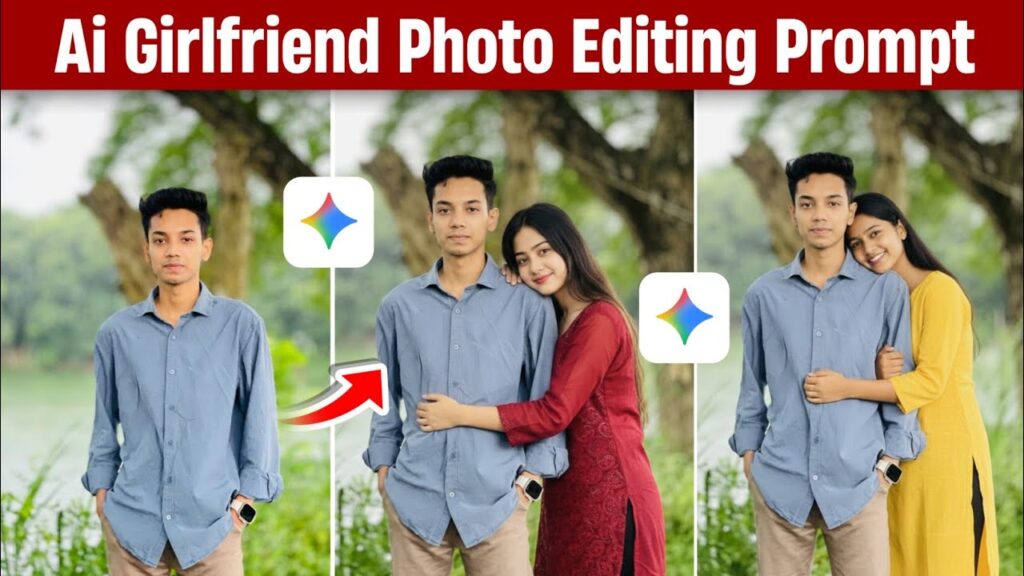
“Create 1:1 image in which add the girl in boy photo realistically as they are hugging each other. Combine two photos into a single image with proper aspect ratio and alignment.”
You can change “hugging” if you want:
👉 Hand in hand
👉 Sitting together
👉 Side pose
👉 Walking pose
Just replace the wording in the prompt.
You can also describe the girl’s look, clothes, or style:
Example:
- “Modern yellow kurti”
- “Indian look”
- “Wearing a red saree”
- “Casual western outfit”
It’s totally up to you.
⭐ Step 4: MOST IMPORTANT — Select the Correct AI Model
This is the part where 90% people mess up.
After writing your prompt:
DON’T press send yet!
Instead:
👉 Tap on the model icon
👉 Select “Create Images – Nano” (or “Nano Model”)
This AI model is the one that generates the most realistic images.
If you don’t choose this model, your results will look fake, blurry, or completely wrong.
Once you select Nano, then press Send.
⭐ Step 5: Let AI Generate Your Photo
The AI will now start generating your image exactly as per your instruction.
For example:
- I wrote “hugging”
- “Modern yellow kurti”
- “Indian style”
And look at the result —
The girl looks extremely realistic, standing exactly the way I described.
Most importantly:
✔ Perfect alignment
✔ Proper lighting
✔ Matching skin tones
✔ Natural posing
✔ Completely blended with the original photo
It honestly doesn’t look AI-generated at all.
Once you’re happy with the result, tap Download and save it to your gallery.
In your gallery, the quality will look even sharper and cleaner.
⭐ Step 6: Using a Reference Photo (Optional but Powerful)
If you want the girl to look similar to a real person (celebrity or someone else), you can upload a reference photo.
Steps:
- Click the + button
- Choose your photo
- Again click + and select the reference photo
- Paste the same prompt
- Press Send
AI will blend both images and create a realistic version of the girl inspired by the reference picture.
Note:
👉 The face will not be 100% identical
👉 This is to avoid misuse
👉 Only for educational/trending purposes
The results still look incredibly natural.
AI Editing Prompt (Copy Button Included)
⭐ Final Thoughts
So this is how you can easily create trending AI Girlfriend Photo Edits using the Gemini AI App.
This method works even if:
✔ You don’t have a girlfriend
✔ You want to follow the trend
✔ You simply want aesthetic AI edits
✔ You want unique Instagram photos
I hope now you understand the entire process clearly.
If you want more AI prompts, editing tricks, or templates — just tell me and I’ll create them for you ❤️