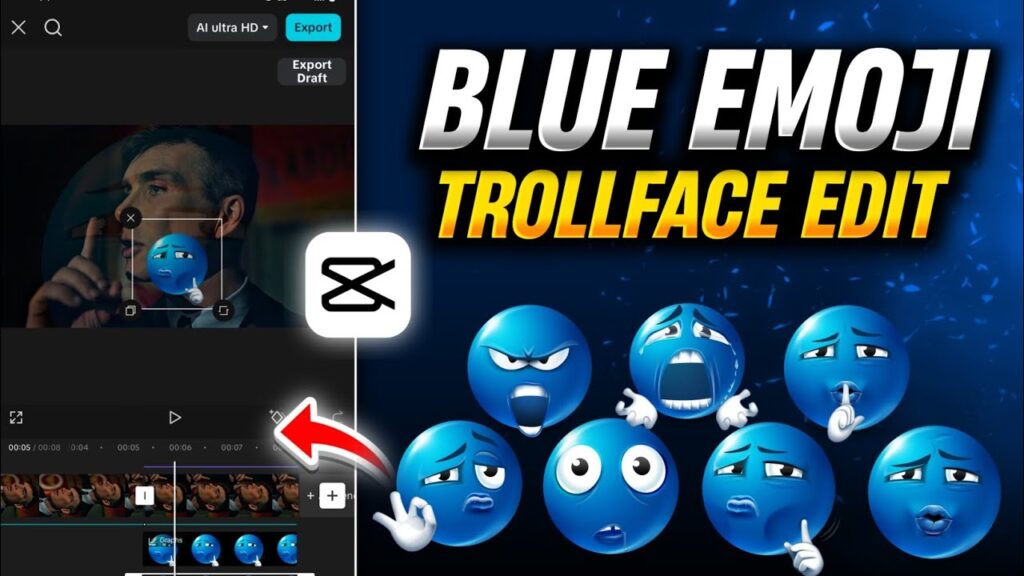
In today’s digital world, the Blue Emoji TrollFace video edits are going insanely viral across Instagram Reels, YouTube Shorts, and TikTok. If you also want to create the same trending Blue TrollFace meme edit using CapCut but don’t know where to start, then this step-by-step guide is for you.
In this blog, I’ll show you exactly how to import your clips, add the Blue TrollFace, apply transitions, adjust beat sync, and export the video in high quality. You will also learn a simple trick to download unlimited Blue Emoji TrollFace PNGs so you never run out of stickers again.
If you’ve been scrolling through Instagram or YouTube lately, you must have seen those viral Blue Emoji TrollFace videos blowing up everywhere. They are funny, trendy, and honestly… super fun to edit!
In today’s blog/vlog-style article, I’m going to show you exactly how you can create the same trending Blue Emoji TrollFace edit using the CapCut application.
Everything is beginner-friendly, simple, and explained step by step.
So make sure to read till the end — because at the bottom I’ve also shared how to download hundreds of Blue Emoji TrollFace PNGs for free.
🎬 Getting Started: What You Need
Before we begin editing, you only need two things:
✔ A working CapCut app
✔ A VPN app (free from Play Store)
Just install any free VPN, open it, and tap Connect.
This ensures all CapCut features work smoothly.
Also — if you haven’t joined our Telegram or WhatsApp channel yet, go ahead!
I share important app updates and working CapCut versions there.
📲 Importing Your Video in CapCut
- Open CapCut
- Tap New Project
- Select your video and click Add
Your video will now be added to the timeline.
As you play it, you’ll notice it’s still your raw, normal clip.
✂ Remove the CapCut Ending Watermark
Tap the CapCut outro clip → delete it.
🖼 Adjusting The Aspect Ratio
If you want your video to look wide and cinematic, do this:
- Go to Aspect Ratio
- Select 16:9
- Tap Done
- Zoom your video to fill the screen fully
🔇 Mute or Keep Original Audio
Tap your video → select Mute Clip
If you want the original sound, you can keep it.
Otherwise, muting helps when you want to use your own music.
🎯 Finding the Perfect Spot for TrollFace
Play your video carefully and find the moment where the TrollFace will look funny or impactful.
For example, if someone says “Keep Quiet” in the clip — dropping the TrollFace right there gives a perfect comic punch.
Stop the video exactly at that point.
❄ Create a Freeze Frame
To freeze the perfect moment:
- Tap the video
- Scroll to Freeze
- Tap it → The frame will freeze
Delete the extra clip after the freeze if you don’t need it.
🟦 Adding the Blue Emoji TrollFace
Now comes the fun part!
- Tap Overlay
- Click Add Overlay
- Go to your photos
- Select the Blue TrollFace PNG
- Add it to the timeline
- Resize and position it wherever it looks funniest
(Download link for TrollFaces is at the end of the article.)
🎞 Adding Animation to TrollFace
CapCut has many built-in animations.
Go to:
Animation → In Animation → Search “Unfold” → Apply
This gives a smooth appearance effect.
But… we can also create a manual animation for a more trending look.
🔧 Manual Keyframe Animation (Trending Style)
- Tap the TrollFace overlay
- At the beginning → Add a keyframe
- Move ahead a little → Add another keyframe
- On the second keyframe → Enlarge the TrollFace to full screen
- Go to Opacity → Make it 0
- Tap Done
Now it will animate beautifully from small → large → fade out.
📈 Make It Smoother with Graphs
Go to Graphs → Custom → Add a slight curve → Done
This makes your animation smooth and professional.
🌟 Adding Background Effects
If you want more style:
- Go to Effects
- Choose Dreamy Glow from the Light section
- Or use Motion Sharpness from Motion section
- Adjust glow and brightness for a soft aesthetic look
Use effects lightly to avoid over-editing.
💾 Exporting Your Video
Click Export
Set everything to Maximum Quality
Tap Export again
Your video will be saved to your device.
🔵 How to Download 100+ Blue Emoji TrollFaces (Free Method)
Here’s the easiest trick:
- Open Chrome browser
- Search: Blue Emoji
- Click the first website that appears
- Inside, you’ll find 100+ Blue Emoji TrollFace PNGs
- Long press any image → Tap Download Image
- Save as many as you want
You can even change colors:
Green, Red, Yellow, Purple — everything is available!
Choose the one you love and add it to your edits.
🔽 Download Blue Emoji TrollFace PNG Pack (Provided by Us)
👉 Click Here : [ Download ]
💬 Final Thoughts
I hope you learned how to create the trending Blue Emoji TrollFace Video Edit in CapCut.
It’s super easy, fun, and perfect for viral reels. Try it, experiment with animations, and create your own style.
I hope this step-by-step guide helped you understand how to create a Blue Emoji TrollFace viral edit using CapCut. With simple tools like overlays, keyframes, freeze frames, and beat sync, anyone can make a professional-looking meme edit in just a few minutes.
The PNG download trick I shared will also make your editing faster and easier, giving you access to unlimited TrollFace stickers anytime you need them.
If you found this tutorial helpful, feel free to share it with others. And don’t forget to join our editing community for more resources, free assets, and daily editing tips.
See you in the next tutorial — until then, keep creating, keep improving, and keep going viral 💙🔥