you’ve been scrolling through Instagram lately, you’ve surely seen the viral Disappear Effect Reels — where the creator suddenly vanishes from the screen like magic.
The best part? You can create this trending effect using CapCut, and it doesn’t require advanced editing skills.
In this complete guide, you will learn:
- How to shoot the perfect disappear clip
- How to use freeze-frame + masking
- How to match the right timing
- How to add glitch/flash effects
- How to add sound effects
- How to export in best quality
- PLUS: A free music download link
Let’s start creating your own viral disappearing reel! 🚀
⭐ Step 1: Shoot the Perfect Video Clip
Great disappear reels start with great shooting.
✔ Keep your mobile on a tripod
✔ Background must be still (no moving items around)
✔ Stand in a fixed pose
✔ Quickly move out of the frame
The faster you exit, the more realistic the disappear effect looks.
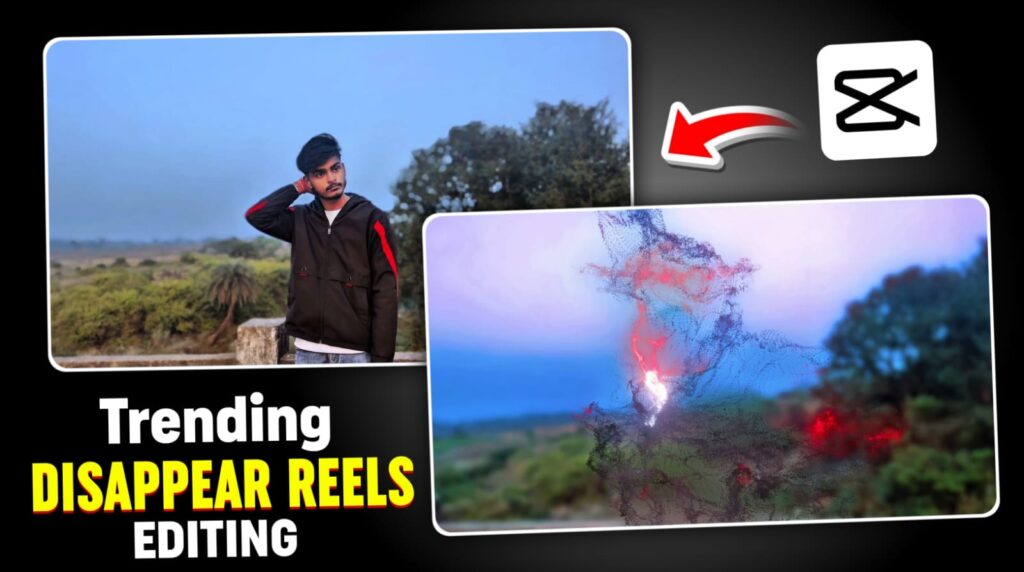
⭐ Step 2: Open CapCut → Create a New Project
- Open CapCut
- Tap New Project
- Import the video you shot
Make sure the clip is fullscreen and properly aligned.
⭐ Step 3: Find the “Final Visible Frame”
Scroll the timeline to find the last frame where your body is fully visible.
This is the frame where the disappear effect begins.
⭐ Step 4: Add a Freeze Frame
- Select your clip
- Tap Freeze
- Set freeze duration to 0.5–1 second
This freeze image will act as your “fake body” right before you vanish.
⭐ Step 5: Apply Masking on the Freeze Frame
Select the freeze-frame clip:
- Go to Mask
- Choose Circle / Linear / Rectangle (depending on your pose)
- Expand the mask until your full body fits
- Increase Feather for smooth blending
This makes the illusion seamless.
⭐ Step 6: Remove Your Real Body Movement Behind the Freeze Frame
To complete the vanish effect:
- Split the clip exactly after the freeze
- Delete the section where you walk out of the frame
- This leaves only the freeze-frame version of you behind
Now it will look like you “disappeared instantly.”
⭐ Step 7: Add a Flash or Glitch Effect
To make it dramatic:
- Add a white overlay
- Set duration to 0.1 seconds
- Apply Overlay blend mode
- Use keyframes:
- Start: opacity 100
- End: opacity 0
Perfect for magic-style disappear transitions.
⭐ Step 8: Add Sound Effects (Highly Important)
Go to:
- Audio → Sounds → Search: “Whoosh”, “Pop”, “Flash”, “Magic Vanish”
These sound effects dramatically enhance the illusion.
Music Download Link
⭐ Step 9: Color Grading for a Professional Look
Go to Adjust:
- Contrast: +15
- Saturation: +10
- Sharpen: +20
- Highlights: +10
These light adjustments make the reel look cinematic and polished.
⭐ Step 10: Export in Highest Quality
For Instagram Reels:
✔ Resolution: 1080p
✔ FPS: 60 FPS
✔ Bitrate: High
✔ Format: MP4 (H.264)
This ensures your reel looks clean and sharp after posting.
⭐ Conclusion
Creating a Disappear Reel in CapCut is easy once you understand the core idea:
Freeze-frame + mask + timing + flash effect.
With the right sound effect and smooth masking, your reel will look professional and ready to go viral.