How to Create a Realistic AI Wedding Invitation Video (2025 Guide
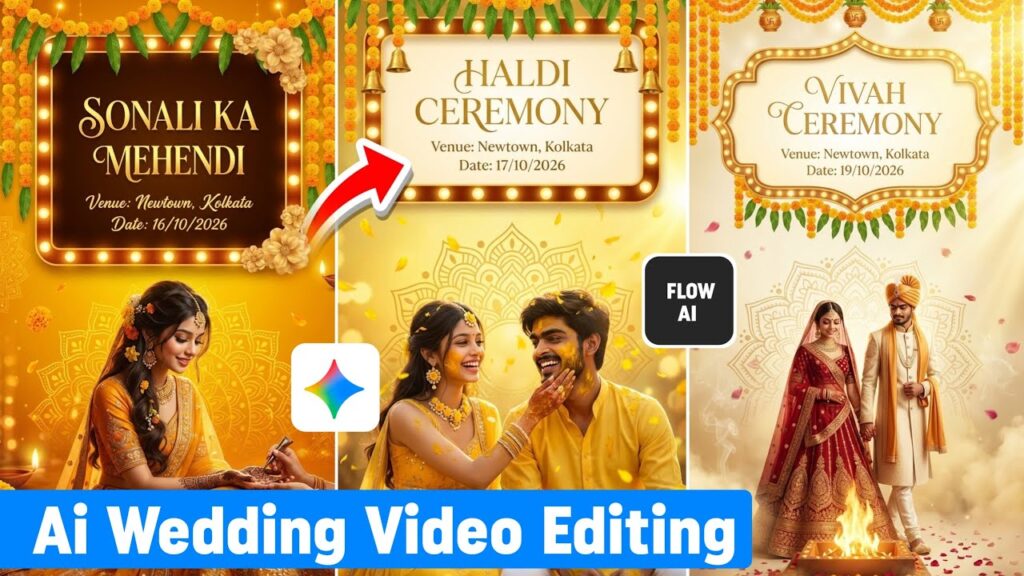
Creating a wedding invitation has evolved far beyond traditional printed cards. In 2025, AI-powered wedding invitation videos are becoming extremely popular because they look cinematic, premium, and emotionally engaging. Using a combination of ChatGPT, AI image generation, Flow AI, and CapCut, you can create ultra-realistic Hindu wedding invitation videos that look professional and can even be sold to clients for good money.
In this complete guide, you’ll learn step by step how to create a realistic AI wedding invitation video from scratch — even if you are a beginner.
Why AI Wedding Invitation Videos Are Better Than Normal Cards
AI wedding invitation videos offer many advantages over traditional cards:
- Cinematic and premium look
- Fully customizable themes and colors
- Shareable on WhatsApp, Instagram, and YouTube
- Cost-effective and time-saving
- High demand in the wedding market
If you or your relatives are getting married, or if you want to earn money by offering this service, this skill is extremely valuable.
Tools Required to Create AI Wedding Invitation Video
Before starting, make sure you have access to the following tools:
- ChatGPT (with image generation support)
- Flow AI (Image to Video animation tool)
- CapCut (Video editing app)
- Stable internet connection
- Android or iOS smartphone
Most of these tools offer free credits or trial access, which is enough to create high-quality videos.
Step 1: Generate AI Wedding Invitation Images Using ChatGPT
First, you need to create realistic wedding invitation images for each wedding event.
Wedding Events Covered:
- Mehendi Ceremony
- Haldi Ceremony
- Sangeet Ceremony
- Vivah (Wedding) Ceremony
- Reception Ceremony
Process:
- Open ChatGPT
- Upload a few reference wedding images (links can be taken from free image sources)
- Paste a detailed cinematic wedding prompt describing:
- Hindu wedding aesthetics
- Golden marquee frame
- Marigold decorations
- Warm saffron-gold lighting
- Mandala backgrounds
- Vertical 4K composition
Each event should be generated as a separate ultra-realistic vertical image, but all should follow the same theme for consistency.
Once generated, download all five images to your device.
Step 2: Convert Images Into Cinematic Videos Using Flow AI
Now, we’ll animate the static images to make them look alive.
How to Use Flow AI:
- Open your browser and search Flow AI
- Click on Create with Flow
- Create a New Project
- Select Image to Video
- Upload one wedding image at a time
Animation Prompt Example:
Use prompts like:
- Soft cinematic pan
- Subtle zoom on the couple
- Warm golden glow
- Falling marigold petals
- Elegant text fade-in
- 5-second realistic loop
- Vertical 4K format
Repeat this process for all wedding events. After generation, download all video clips.
Step 3: Edit and Assemble the Wedding Video in CapCut
CapCut is used to merge all clips into a final professional video.
Project Setup:
- Open CapCut
- Create a New Project
- Select 9:16 (Vertical) format
- Import all generated video clips
Arrange the clips in order:
- Mehendi
- Haldi
- Sangeet
- Vivah
- Reception
Step 4: Add Smooth Transitions
Transitions make the video look premium.
Recommended transitions:
- Dissolve
- Fade to Black
Avoid flashy or shake transitions. Apply the same transition to all clips for consistency.
Step 5: Add Text and Wedding Details
On each clip, add:
- Event name
- Venue
- Date
Text Styling Tips:
- Use elegant golden fonts
- Keep animations simple (Fade-In)
- Maintain the same font style throughout
This maintains a royal and cinematic wedding look.
Step 6: Add Voiceover or AI Text-to-Speech
You can:
- Record your own voice, or
- Use CapCut’s AI Text-to-Speech feature
Keep the voice subtle and emotional. If using music, lower the voice volume slightly so it blends well.
Step 7: Add Background Wedding Music
Inside CapCut:
- Go to Audio → Sounds
- Search for Romantic Wedding Music
- Sync the music beats with video transitions
Recommended volume balance:
- Music: 60–70%
- Voice: 30–40%
Image Download Link
Step 8: Color Grading for a Premium Look
Apply warm color grading to enhance realism.
Suggested settings:
- Warm Golden LUT
- Exposure slightly increased
- Contrast boosted for clarity
This step makes a huge difference in overall quality.
Step 9: Final Adjustments and Export
Before exporting:
- Trim clips to 3–4 seconds if needed
- Add slow motion (0.5x) for wedding rituals
- Ensure smooth transitions
Export settings:
- Maximum quality
- Vertical resolution
- High frame rate
Your AI wedding invitation video is now ready.
How to Get Pro AI Tools for Free (Bonus Tip)
Some AI tools require premium access, but you can get free trials:
- Install the ZNI app from Play Store
- Upgrade to Gemini Pro (1-month free)
- Jio users can get up to 18 months free access via MyJio
This gives access to advanced AI models that improve image and video quality.
Monetization Opportunity
You can charge clients for:
- Wedding invitation videos
- Event teaser videos
- Social media wedding reels
Many creators earn good monthly income using this exact method.
Conclusion
AI wedding invitation videos are the future of digital wedding storytelling. With the right prompts, AI tools, and editing techniques, anyone can create cinematic, ultra-realistic wedding videos that look expensive and professional.