How to Create a Colorful Birthday Video in VN App: A Step-by-Step Guide
Are you looking to create a stunning, professional-looking birthday video for your loved ones? You’ve come to the right place! In this tutorial, we will show you how to make a colorful, multi-photo birthday video using the VN Video Editor and PicsArt applications.
This effect looks premium and trendy, yet it is surprisingly easy to make. Let’s dive into the process!
Prerequisites: Apps You Need
Before we start, make sure you have these two apps installed from the Play Store:
- VN Video Editor: For the main video assembly and animation.
- PicsArt: To create the custom photo grids used in the background.
Step 1: Designing the Photo Strips in PicsArt
First, we need to create a vertical strip of photos to use as our moving background.
- Open PicsArt and tap the Plus (+) icon.
- Select 4 photos from your gallery (you can choose more, but four works best).
- Do not use a pre-made design. Choose the “Transparent” background option.
- Arrange your photos vertically. Resize them so they are equal in size and aligned in a straight column.
- Save/Download this image to your gallery.
- Pro Tip: Use the “Replace” button to quickly swap those 4 photos with 4 new ones to create a second, different photo strip. Save this one too.
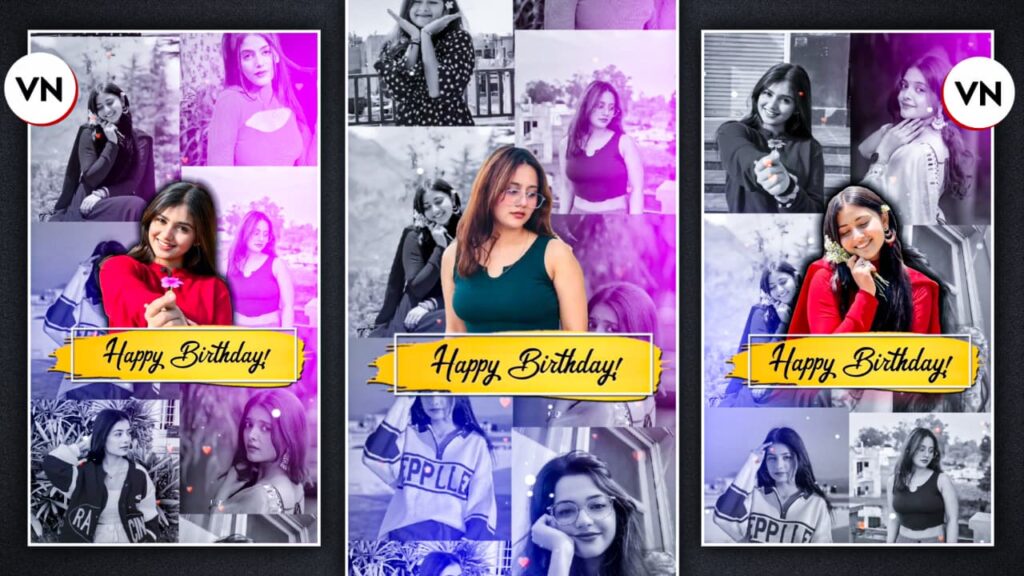
Step 2: Setting Up the Project in VN Editor
Now, let’s move to the editing phase.
- Open the VN Video Editor app.
- Tap New Project and go to the “Stocks” section. Select a Black Background.
- Extend the duration of the background to about 10–12 seconds (or the length of your song).
Step 3: Creating the Moving Background Effect
This is where the magic happens using the PIP (Picture-in-Picture) tool.
- Tap on the PIP icon (Add Image/Video) and select your first photo strip from PicsArt.
- Increase its size to fill the height of the screen and place it on the left side.
- Add the second photo strip and place it on the right side.
- Add Keyframes:
- Go to the start of the clip and add a Keyframe.
- Go to the end of the clip, add another Keyframe, and slide the photo strip upward (or downward).
- Do the opposite for the other strip. When you play it, one side will move up while the other moves down.
- Apply Filters: To make it look aesthetic, go to Filters > B&W to turn these background strips black and white.
Step 4: Adding Overlays and Main Photos
- Color Overlay: Add a colorful light effect video (template) via PIP. Set the Blending Mode to “Screen” so only the colors show over your background.
- PNG Elements: Add a “Happy Birthday” PNG text. If it has extra elements you don’t want, use the Crop tool to clean it up.
- Main Subject: Add your main high-quality photo.
- Background Removal: Use the “Cutout” tool in VN. It will automatically remove the background of your photo, leaving just the person.
- Shadow Effect: Duplicate the photo or add a border to give it a “Shadow” look for depth.
Step 5: Music and Final Touches
A video is incomplete without the perfect vibe!
- Tap the Music icon and select a birthday track from your device or the VN library.
- Align all layers (Photos, PNGs, and Music) so they start and end at the same time.
- Export: Once satisfied, tap the Export button. Choose 1080p and 60 FPS for the best quality.
Conclusion
Creating a professional birthday video doesn’t require complex PC software. With just VN and PicsArt, you can create a masterpiece that looks like it was made by a pro editor.
Key SEO Keywords: VN Video Editor Tutorial, Birthday Video Editing, PicsArt Photo Editing, How to make birthday video in VN, Viral Birthday Video Status.