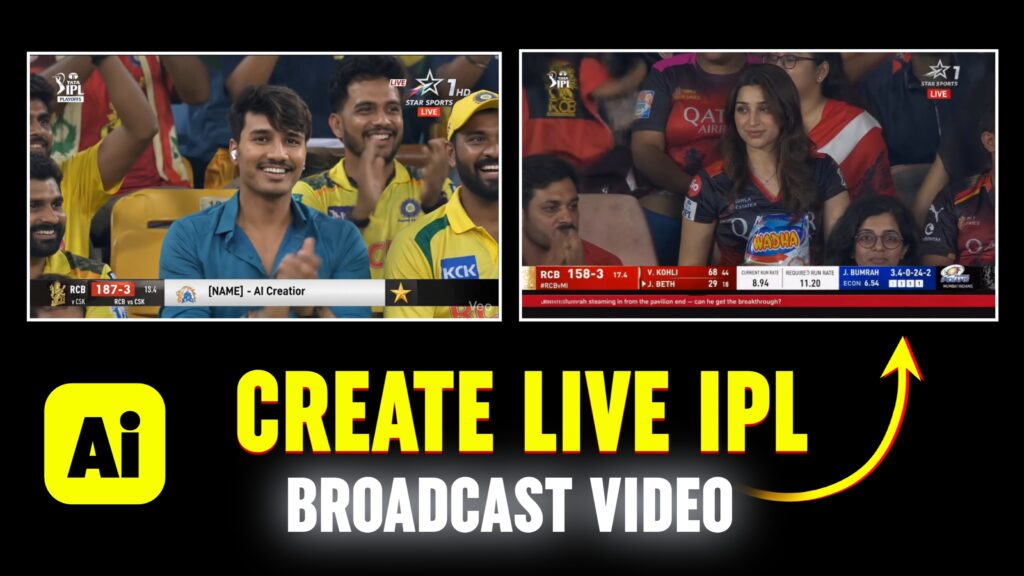
Generative AI tools have simplified the process of creating dynamic, short-form sports motion clips. By combining text-to-image AI generators with image-to-video animation engines and mobile editing tools, creators can produce broadcast-style animated sequences without relying on traditional 3D rendering pipelines.
In this guide, we will break down the end-to-end technical workflow: from engineering high-detail base images to animating motion frames and adding sound design in mobile video editors.
Understanding the AI Video Generation Pipeline
To create clean, realistic sports animation clips, your production process follows a four-stage pipeline:
- Base Image Prompting: Generating high-resolution static frames with clear character definition and background depth.
- Image-to-Video Motion Generation: Converting static frames into dynamic video clips using motion-control AI generators (e.g., Luma Dream Machine, Runway Gen-2, or Google Flow).
- Timeline Sequencing: Trimming and ordering clips in a mobile editor to build a cohesive narrative arc.
- Audio & Sound Effect Alignment: Syncing transitions, camera pans, and motion impacts to high-energy audio beats.
Step 1: Crafting the Base Image Prompt
Start by generating a sharp base image. Clean lighting and defined subject boundaries prevent distortion when animating the image into a video.
Base Visual Prompt Template
Prompt:
High-definition dynamic portrait of a cricket athlete celebrating on a stadium pitch, floodlights illuminating the background, volumetric smoke effects, team colors highlighted with dramatic rim lighting, hyper-detailed skin texture, 8k resolution, aspect ratio 9:16.
Key Tip: Avoid adding complex multi-character movements in a single static prompt, as AI image generators often struggle with multi-subject accuracy. Keep the focus on a single athlete.
Step 2: Converting Static Images to Animated Video Clips
Once your static base frame is generated, import it into an image-to-video AI platform (such as Luma, Runway, or Kling AI) to generate subtle motion:
- Upload Reference Image: Load your base prompt output into the image-to-video tool as the starting frame.
- Apply Motion Prompts: Enter simple camera directional commands rather than complex character motions.
- Recommended Motion Prompt:
"Slow cinematic zoom in, subtle crowd movement in background, lens flare shift."
- Recommended Motion Prompt:
- Set Motion Strength: Keep the camera motion parameter at a moderate setting ($3 – 5$ on most platforms) to prevent unnatural body distortion or facial warping.
Step 3: Mobile Timeline Assembly & Audio Sync
Export your generated 4-second video clips and import them into a mobile editing application (CapCut, VN Editor, or Alight Motion):
- Sequence Setup: Arrange your clips to follow a natural sports promo cadence:
- Clip 1 (0–2s): Wide stadium intro shot.
- Clip 2 (2–4s): Close-up athlete focus/reaction.
- Clip 3 (4–6s): Dynamic celebration or action stance.
- Speed Ramping: Apply subtle speed curves ($0.5\times$ slowdown on impact moments) to enhance the dramatic feel of the movement.
- Sound Design (SFX): Add stadium crowd ambient noise in the background and insert low-frequency Whoosh sound effects at every transition cut.
Troubleshooting Common AI Video Artifacts
- Issue: Facial Features Become Unstable or Distort During Animation
- Fix: Lower the motion intensity setting in your video generator. If the face distorts heavily, use a video enhancer tool or apply keyframe digital zooms on static images instead of full video generation.
- Issue: Video Output Appears Low-Resolution or Grainy
- Fix: Apply a mobile detail-enhancement filter (+10% sharpness, +5% contrast) or run the exported video through a 4K AI video upscaler before final posting.
Summary
Creating high-quality AI sports motion videos relies on a structured, multi-step pipeline rather than relying on a single prompt. By taking control of base image design, motion parameter settings, and audio-visual synchronization, you can produce professional-grade short-form motion graphics for your media channels.